 Codeman maintainer
310f20b288
Codeman maintainer
310f20b288
Compact now draws every reading the same way, ring then label then
value: CPU and MEM get an accent ring (red past 80%, like their value)
in place of the sparklines, the plan windows keep their green, yellow
or red rings, the dot separators go, and both pills share one label and
one value style. The sparkline markup, history and CSS are removed.

Co-Authored-By: Claude Opus 5.5 (1M context) <noreply@anthropic.com>
20 KiB
The Dashboard
What the interface is telling you, and which parts of it are hidden until you turn them on.
Most of Codeman's UI is opt-in. A stock install shows a deliberately small header, and a feature you read about here may simply not be on screen yet. Where that is the case, this page says so and names the setting.
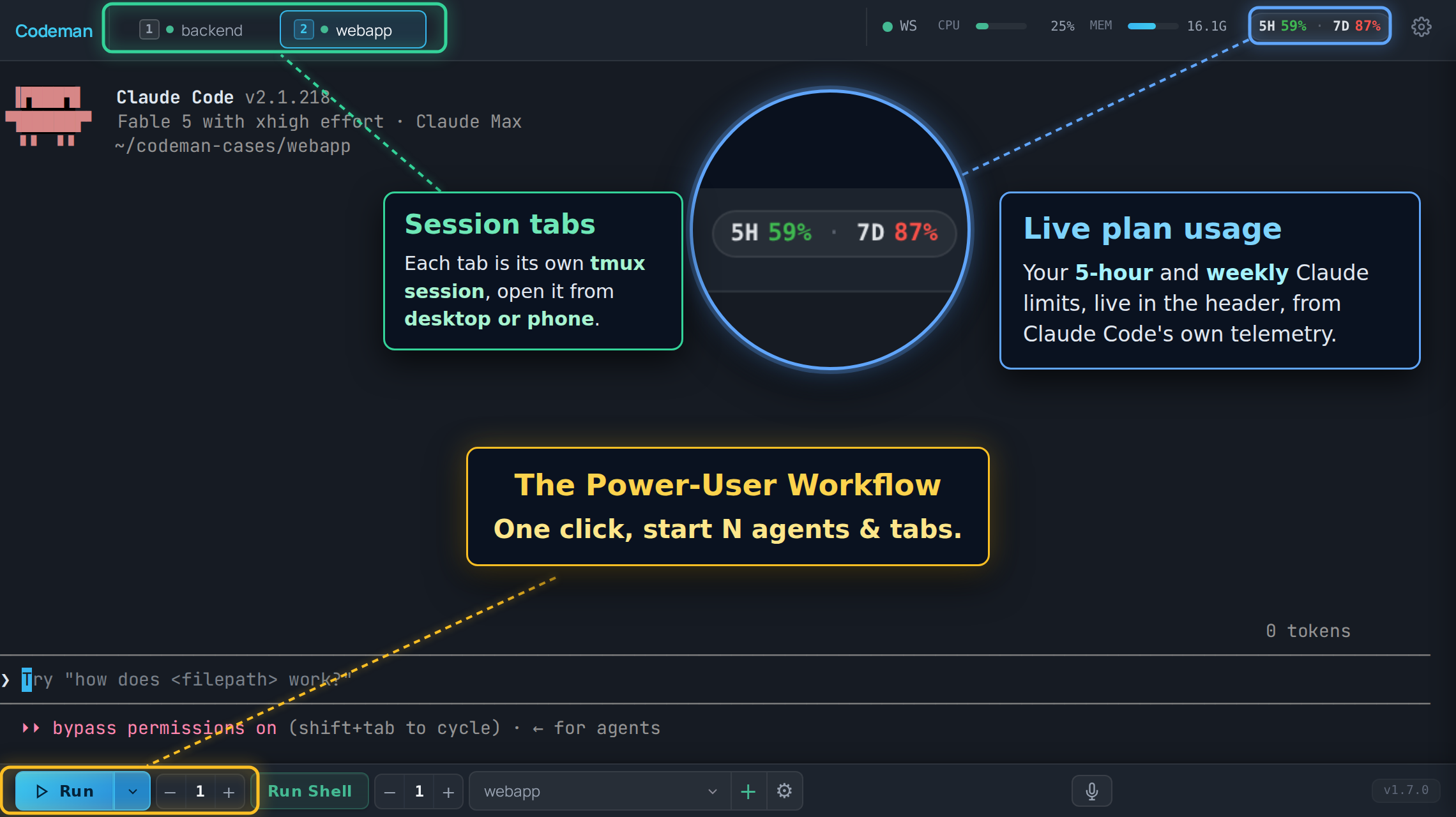
Layout
| Region | What lives there |
|---|---|
| Header, left | The "C" logo (goes home) and the session list, unless you moved it to the sidebar. |
| Header, right | Status chips and panel buttons, most of them off by default. |
| Center | The terminal for the active session, or the home screen when nothing is selected. |
| Bottom toolbar | Run, Stop, Run Shell, the case picker, and the instance counters. |
| Overlays | Panels and modals: Respawn, Cron, Subagents, File Viewer, Settings. |
Session list layout
The session list lives in the header as a horizontal strip by default. With a lot of sessions open that strip stops being scannable, so App Settings → Appearance → Tabs → Session List Layout can move it into a vertical sidebar on the left instead, and Tab Orientation can turn the strip itself into a vertical rail.
| Layout | Behaviour |
|---|---|
| Header tab strip | The default. On desktop it is one row per state by default (see Tab layouts); it scrolls sideways on a phone. |
| Left sidebar | A vertical list with a filter box and a live session count. Alt+B collapses it to a narrow rail that keeps the status dots and task badges visible. On a phone it is an off-canvas drawer rather than a docked rail. A detailed variant adds the home screen's per-session line (created 3d ago · working 12m) and a status pill. |
| Vertical rail | The strip turned vertical beside the terminal, resizable, with detailed rows by default. Vertical Rail Order sorts it by activity (blocked on you first, then longest running, then most recently quiet), the same order as the home screens; pick Manual to get your own order and drag-reordering back. Tab groups: pick Move to new group from a row's ⋯ menu (or Shift+F10 on it) to make the first one; a group header's menu (right-click, Shift+F10 or its ⋯ glyph) renames it (also F2), reorders or deletes it, rows move between groups from their own menu or by dragging with a mouse or pen, and a collapsed group stays collapsed on that device. Desktop and tablet only. |
It is the same list either way, just re-hosted: tab order, drag-to-reorder, the Alt+1
to Alt+9 numbers and every status colour below behave identically in both. The setting is
per device, so a sidebar on your desktop does not force one onto your phone.
Tab layouts
App Settings → Appearance → Tabs → Tab Layout picks how the tabs are arranged. Per device.
| Layout | What it does |
|---|---|
| By state (default) | Groups the tabs by what each session needs from you (below). |
| By case | One box per case, labelled with the case and its tab count. Inside a box, w75-api-gateway reads just w75. A case with one tab gets a box with a colour swatch. |
| Ledger | The same list on an aligned column grid: equal cells, monospace names, a coloured bar on the left of each cell instead of the dot (yellow waiting, red needs you). Desktop header only. |
| Classic | The single list in tab order, as before. |
By state groups the tabs like this, most urgent on top:
| Group | Who is in it |
|---|---|
| Needs you | Red: a question or permission prompt is blocking the agent. A failed session too. |
| Waiting | Yellow: the agent finished its turn and is waiting for your next prompt. |
| Working | A turn is running. |
| Idle | Everything quiet, including ended sessions, agents that exited inside their pane, and web tabs. |
In the header each group is a row with its name and count on the left (Idle, the quiet default, carries no label); a group with more tabs than fit on one line continues on the next line. State Order → Needs you at the bottom turns the rows the other way up, so the needs-you row sits right above the terminal. Empty groups are not shown. These are the same states the phone overview and the desktop home rail use, and tabs move between groups on their own as their state changes.
Both groupings also apply to the vertical rail and the left sidebar, as labelled sections.
Inside a group or a box tabs keep your tab order (on a rail sorted By activity, the
activity order), and the Alt+1 to Alt+9 numbers never change. Dragging reorders tabs
within a group or box. On a phone the strip stays a single scrolling row in group order,
without labels or boxes. If you have named tab groups in the vertical rail, those take
precedence there.
Session tabs
One tab per session, in your order, and that order syncs across your devices.
Status is carried by the dot and the tab's own styling:
| Look | Meaning |
|---|---|
| Green dot | Alive, not currently working. |
| Pulsing green dot with a ring | Working on a turn. |
| Yellow tab, blinking | The agent is waiting for input from you. |
| Red tab, blinking | A question or permission prompt is blocking the session. |
| No dot | The session is not running. |
Muted grey dot plus an exited (137) badge |
The agent inside the pane has exited, with that exit code (or exited (signal 9)). A bare exited means tmux saw the pane die but did not report how, which is not the same as a clean exited (0). Detailed sidebar and rail rows read exited in their pill. |

The alert states are steady colour with a pulse layered on top, not a blink between the alert colour and nothing, so a tab that needs you looks like it needs you at every point in the cycle. They survive a page reload: the state is re-seeded from the server on load, so reloading while a permission prompt is blocking does not lose the red tab.
Navigation:
| Action | Keys |
|---|---|
| Jump to tab N | Alt+1 to Alt+9 (the number on the tab) |
| Next / previous | Ctrl+Tab, Alt+[, Alt+] |
| Move the active tab | Ctrl+Shift+{, Ctrl+Shift+} |
| Close | Ctrl+W |
| Find any session, open or past | Ctrl+K (also Cmd+K and Alt+K) |
Tabs can also be dragged to reorder.
Automatic session names
Off by default. Turn on Auto-name Sessions (App Settings → Appearance → Tabs; synced
across devices) and a tab that still carries its generated name, such as w3-myapp, takes a
title from the first real prompt you submit, keeping the prefix: w3-myapp: fix the login redirect. The strip shows the title and keeps the prefix in the tooltip, and the next
session in that case still counts up to w4-myapp. It happens once per session, only for
prompts you type or send through the input API (never a Ralph, respawn, cron or approval
answer), and never for shells. Slash commands such as /clear do not become titles; the
next prompt gets its turn. A name you set yourself, before or after, is never touched. The
title is derived locally from the prompt's first sentence; no text leaves the machine.
On phones the strip scrolls horizontally instead of wrapping, and the active tab is always
scrolled into view. It is not reordered to the front, so the Alt+N numbering stays stable.
Lineage arcs
When one session spawns another (an agent starting a worker through the API), Codeman draws a coloured arc under the strip connecting parent to child, with one colour per child. It is how a fan-out of eight workers stays readable.
Desktop only, and on by default. Turn it off in App Settings → Appearance. Arcs are skipped for tabs scrolled out of the strip.
Header controls
The right side of the header. Almost all of these are off until you enable them in App Settings → Header & Panels.
| Control | Default | What it does |
|---|---|---|
| Connection dot | Always on | SSE connection health. Green is connected. |
Font size - / + |
Always on | Ctrl + / Ctrl - do the same. |
| CPU / MEM | On | Server resource use. Drawn as tiles by default; see Header Stats Style below. |
| File Viewer | On | Toggles the file browser panel. |
| Settings gear | Always on | App Settings. |
| Plan usage chip | On, desktop only | Live Claude subscription usage. Claude-only, and needs its telemetry exporter, which the same setting installs. |
| Session Manager | Off | The full session list, live and historical. |
| Approvals bell | Off | Cross-session queue of prompts waiting on a human. Appears only when the count is above zero. Never shown on phones. |
| Read My Mind 🧠 | Off | Predicts your next prompt for this case. Claude-only. |
| Attachments | Off | Registered external files. |
| Away Digest | Off | What happened while you were gone. |
| Last Response | Off | Readable view of the agent's last answer, useful on phones. |
| Ultracode / Workflow | Off | Live workflow-run agents. |
| Notifications | Off | Notification history and settings. |
| Lifecycle Log | Off | Session start, exit, and kill audit trail. |
| Cron ⏰ | Off | Scheduled jobs. |
| Multi-monitor | Off, macOS | Opens a window spanning every display. |
| Split | Off, desktop only | View a second session beside the active one, with a draggable divider. |
| Tunnel indicator | When a tunnel runs | Cloudflare tunnel status. |
| Admin panel | Multi-user only | User administration. |
Header Stats Style
The connection readout, CPU, MEM and the plan usage windows can be drawn three ways (App Settings → Header & Panels → Header Stats Style, per device, desktop only):
| Style | Look |
|---|---|
| Tiles | The default. One small tile each (WS live, CPU 22%, MEM 14.4G, 5H 28%, 7D 35%): label over value, a thin bar underneath, no icons. |
| Compact | Two slim pills, WS · CPU · MEM and the plan windows, with a small ring beside every value. Hands the tabs back the most room. |
| As before | The bars and the 5H · 7D chip, exactly as they were. |
Hiding System Stats or Plan Usage still hides them in every style.
New header controls never appear on phones. Phone layout is deliberately minimal and is covered in Mobile Guide.
Bottom bar
Git status sits at the right of the bottom bar and shows the active session's uncommitted and unpushed work. It is off by default and per device: turn it on in App Settings → Header & Panels → Bottom bar. Click it for the Git window. See Working With Files.
Connection state
The dot in the header is the quick read. Two louder surfaces exist because a cached page with no server behind it used to look identical to a page with no sessions:
- A full-screen overlay when the page has never loaded server state. There is nothing behind it worth preserving.
- A banner when the connection drops after state had loaded, so your scrollback stays readable.
Both wait about 2.5 seconds before appearing, so a deploy that restarts the server does not flash a warning at you every time. If the browser reports itself offline, the grace period is skipped.
There is also a watchdog for the case where the connection stops delivering without erroring. If the server's heartbeat stops arriving, Codeman reconnects on its own rather than sitting on a green dot showing frozen data.
The terminal
A real terminal: xterm.js in the browser, a real PTY on the server, tmux in between. Full TUIs render correctly.
Worth knowing:
- Scrollback. Agent/TUI sessions pull their entire tmux scrollback on first open. Shell sessions open from a bounded recent tail so a large transcript cannot stall tab switching. Scrolling to the top of a Shell pane pulls the most recent 1 MiB of its tmux history; press Load full history to pull the rest explicitly. Automatic output recovery stays within the bounded browser buffer.
- Wheel and touch scrolling are forwarded into Claude's own transcript when a recent
Claude runs fullscreen (
CLAUDE_CODE_NO_FLICKER=1, or"tui": "fullscreen"in~/.claude/settings.json), so the wheel scrolls the conversation rather than the terminal. Claude's default inline view keeps its history in the terminal and scrolls locally.Shift+Wheelis always local scrollback. Other CLIs scroll locally. - Selection copy.
Ctrl+Ccopies when text is selected and interrupts when it is not.Ctrl+Shift+Calways copies. - Selecting where the CLI owns the mouse.
Shift+dragstarts a selection even in a pane whose mouse events are forwarded to the CLI, and right-click copies the selection (with nothing selected the native menu is left alone). Auto Copy Selection in App Settings copies the moment you release. - Zero-lag input. On touch devices, keystrokes paint locally before the round trip. See Input And Voice.
- Renderer. WebGL by default, with a watchdog that falls back to DOM rendering if the
GPU stalls.
?nowebglforces DOM rendering for one page load.
The home screen
With no session selected you get the welcome screen: run buttons for the CLIs Codeman found, a QR code when a password is set, cross-session search, and Resume Conversation, which lists past sessions including Claude conversations started outside Codeman entirely.
Two extras depending on the device:
- Desktop, wide windows: your open tabs appear as a rail docked to the left edge, in overview order (blocked on you first, then longest running, then most recently quiet), with created and state-duration stamps. It needs at least 1180px of width; below that it is hidden so it cannot overlap the search panel.
- Phones: tapping the "C" logo gives a session overview instead: NEEDS YOU first, then current sessions, then past ones. On by default.
Panels
| Panel | Opened from | Covered in |
|---|---|---|
| Respawn | Session Options | Keeping Agents Running |
| Ralph | Session Options | Autonomous Loops |
| Orchestrator | Toolbar | Autonomous Loops |
| Cron | Header ⏰ (opt-in) | Cron Jobs |
| Subagents | Automatic while agents run | Watching Agents Work |
| Ultracode | Header (opt-in) | Watching Agents Work |
| File Viewer | Header | Working With Files |
| Attachments | Header (opt-in) | Working With Files |
| Approvals | Header bell (opt-in) | Notifications And Approvals |
| App Settings | Header gear | Settings Reference |
Session-specific configuration lives in Session Options, reachable from the tab. App Settings is global; Session Options is per session.
Search and the session palette
Ctrl+K opens the session palette: every session, live or historical, filtered as you
type. Picking a past one resumes its conversation.
The search box on the home screen is wider in scope. It federates over session metadata, run-summary events, and attachment history, filtered by type, case, status, and date. It does substring matching over data already in memory, with no regex and no filesystem reads, so it is fast and cannot be turned into a traversal.
Appearance
App Settings → Appearance carries the theme skins, including light ones. The choice is applied before the first paint, so there is no flash of the wrong theme on load. Terminal font family and weight are per device too: a normal and a bold weight, each from 100 to 900, and the bundled JetBrains Mono renders every step.
The same section has the entrance animations for tabs, terminals, agent windows, and lineage lines. All of them default to the legacy no-animation behaviour, so an untouched install animates nothing.
Read next
- Keyboard Shortcuts - the full list, and how to rebind.
- Settings Reference - every setting, and why some follow you across devices and others do not.
- Mobile Guide - what changes on a phone.
- Watching Agents Work - subagent windows and workflow runs.